Remember the days of manually copying stock prices into spreadsheets? It was a pain, right? You’d search, copy, paste, and then realize the numbers were already old news. Well, Google Sheets has a neat trick up its sleeve: the googlefinance function. It’s like having a direct line to financial data, making keeping track of stocks, currencies, and market trends way simpler. This guide will walk you through how to use this function, from basic price checks to building your own financial dashboards.
Key Takeaways
- The googlefinance function in Google Sheets lets you pull real-time and historical financial data directly into your spreadsheet.
- You can get current stock prices, trading volume, market cap, and other key metrics using specific attributes.
- The function supports retrieving historical price data for specific date ranges, helping you analyze trends.
- Beyond stocks, the googlefinance function can also track currency exchange rates.
- Common issues like unsupported tickers or data fetching errors can often be resolved by checking the syntax and symbol.
Understanding the GoogleFinance Function

What the GoogleFinance Function Offers
Google Sheets has a built-in tool called the GOOGLEFINANCE function. Think of it as your direct line to a massive amount of financial data. It lets you pull information about stocks, currencies, and more, right into your spreadsheet. This means you don’t have to manually search for prices or historical trends; the function does the heavy lifting for you.
Core Capabilities and Accessibility
The GOOGLEFINANCE function is pretty straightforward to use, making it accessible whether you’re just starting with spreadsheets or you’re a seasoned pro. It can fetch:
- Real-time data: Get current stock prices and other market information.
- Historical data: Look back at past performance over days, weeks, months, or years.
- Currency exchange rates: Track how different currencies are performing against each other.
- Index data: Monitor major market indices like the S&P 500.
It’s all available directly within Google Sheets, meaning no extra software or subscriptions are needed.
The Power of Direct Data Retrieval
Instead of copying and pasting numbers from websites, GOOGLEFINANCE pulls data directly. This saves a lot of time and reduces the chance of making mistakes. You can set up your sheet once, and the data will update automatically (or as frequently as Google Finance provides it).
The ability to directly access and update financial information within Google Sheets transforms how you can track markets. It moves you from manual data collection to automated analysis, allowing for quicker insights and more responsive decision-making.
This function is a game-changer for anyone who needs to keep an eye on financial markets, whether for personal investments, business analysis, or academic research.
Mastering the GoogleFinance Syntax
Deconstructing the Formula Structure
The GOOGLEFINANCE function in Google Sheets is your direct line to financial data, but like any tool, you need to know how to use it. It follows a specific structure, and understanding this structure is key to getting the information you need. The basic formula looks like this:
=GOOGLEFINANCE(ticker, [attribute], [start_date], [end_date], [interval])
Let’s break down each part:
ticker: This is the most important piece. It’s the unique symbol or code that identifies a specific stock, currency, or other financial instrument. Think of it as the name tag for the data you want.[attribute]: This tells the function what specific piece of information you’re looking for about the ticker. Examples include the current price, historical closing prices, trading volume, and more. This part is optional, as there’s a default attribute if you don’t specify one.[start_date]: If you’re looking for historical data, this is when you want the data to begin. You can enter dates directly or reference cells containing dates.[end_date]: Similarly, this marks the end of your historical data range.[interval]: This specifies how frequently you want the data reported for historical requests (e.g., daily, weekly, monthly).
The ticker and attribute are the core components that define your data request. The date and interval parameters come into play when you need historical context.
Defining Your Data Request with Tickers
The ticker is how Google Finance identifies what you’re interested in. For stocks, this is usually the company’s stock symbol. For example, Apple is "AAPL", and Microsoft is "MSFT". For currency pairs, it’s typically written as a combination of the two currency codes, like "CURRENCY:USDGBP" for the US Dollar to British Pound exchange rate.
Here are some common examples:
- Stocks: "GOOG" (Alphabet Inc.), "AAPL" (Apple Inc.), "MSFT" (Microsoft Corporation)
- Currencies: "CURRENCY:EURUSD" (Euro to US Dollar), "CURRENCY:JPYUSD" (Japanese Yen to US Dollar)
- Indices: "INDEX:^GSPC" (S&P 500 Index)
It’s important to use the correct ticker symbol. If you’re unsure, a quick search on Google Finance or a financial news website will usually confirm it. Using an incorrect ticker will result in an error, so double-checking is always a good idea.
Using the right ticker symbol is like having the correct address for your data request. Without it, the function won’t know where to find the information you’re looking for.
Specifying Desired Information with Attributes
Once you’ve told GOOGLEFINANCE which asset you’re interested in (the ticker), the attribute parameter tells it what you want to know about that asset. This is where you get specific. There are many attributes available, and they vary slightly depending on whether you’re looking at stocks, currencies, or other financial instruments.
Here’s a look at some commonly used attributes for stocks:
| Attribute | Description |
|---|---|
price | The current trading price. |
volume | The number of shares traded today. |
marketcap | The total market value of the company. |
open | The price at the start of the trading day. |
high | The highest price reached during the trading day. |
low | The lowest price reached during the trading day. |
close | The price at the end of the trading day. |
pe | The price-to-earnings ratio. |
eps | Earnings per share. |
yield | The dividend yield. |
For historical data, attributes like open, high, low, close, and volume are frequently used to analyze past performance. If you omit the attribute parameter, GOOGLEFINANCE defaults to returning the price for the specified ticker.
For example, to get the current price of Apple, you’d use =GOOGLEFINANCE("AAPL", "price"). To get the trading volume, you’d use =GOOGLEFINANCE("AAPL", "volume"). This level of control allows you to pull precisely the data points you need for your analysis.
Leveraging Real-Time Stock Data
One of the most useful things about the GOOGLEFINANCE function is its ability to pull live data right into your spreadsheet. No more jumping between websites or trying to remember the latest numbers. This function keeps you updated.
Accessing Current Stock Prices
Getting the latest stock price is pretty straightforward. For instance, if you want to see the current price for Apple (AAPL), you just need a simple formula. Type this into a cell:
=GOOGLEFINANCE("AAPL", "price")
And just like that, the current price for AAPL shows up. By default, this data updates about every 20 minutes. That’s usually fine for most people, unless you’re really into day trading, in which case, you might want something faster.
Monitoring Trading Volume and Market Cap
Beyond just the price, GOOGLEFINANCE can give you other important real-time details. Trading volume tells you how many shares have been traded recently, which can show how much interest there is in a stock. Market cap, on the other hand, is the total value of the company based on its stock price.
Here are some attributes you can use:
"volume": Shows the trading volume for the current day."marketcap": Displays the stock’s market capitalization."high": The highest price the stock has reached today."low": The lowest price the stock has reached today.
For example, to get the trading volume for Microsoft (MSFT), you’d use:
=GOOGLEFINANCE("MSFT", "volume")
And to see its market cap:
=GOOGLEFINANCE("MSFT", "marketcap")
Utilizing Key Performance Indicators
GOOGLEFINANCE also lets you grab other key numbers that investors often look at. These can give you a quicker sense of a company’s financial health or valuation.
Some useful indicators include:
"pe": The price-to-earnings ratio, which helps compare a company’s stock price to its earnings."eps": Earnings per share, showing how much profit a company makes for each share of its stock."shares": The total number of outstanding shares for the company.
For instance, to find the P/E ratio for Google’s parent company, Alphabet (GOOGL), you would enter:
=GOOGLEFINANCE("GOOGL", "pe")
It’s important to remember that while this data is "real-time," it often has a slight delay, usually up to 20 minutes. For most tracking and analysis, this delay is perfectly acceptable. However, if you need millisecond accuracy for high-frequency trading, you’ll need a different, more specialized tool.
Harnessing Historical Data Effectively
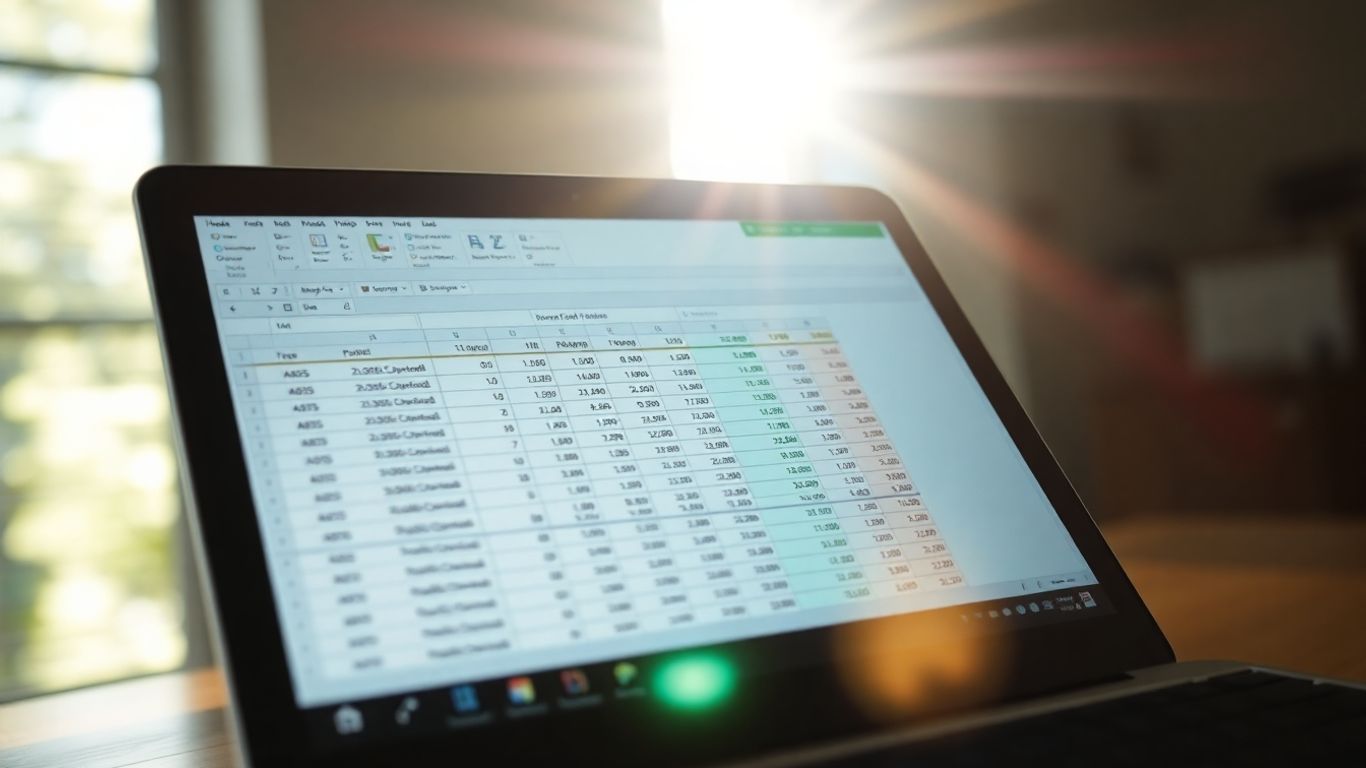
Real-time stock prices are exciting, but sometimes the real story is in the past. Looking back at how a stock has performed over time can tell you a lot. It’s like having a crystal ball, but based on actual numbers. This section will show you how to pull that historical data using GoogleFinance and what you can do with it.
Retrieving Price History Over Time
Want to see what a stock was doing last month, last year, or even further back? GoogleFinance makes it pretty straightforward. You just need to tell it which stock you’re interested in, what kind of price data you want (like the closing price), and the date range. This ability to pull past performance data is key for understanding a stock’s journey.
Here’s how you can get the closing prices for a stock over a specific period:
- Ticker Symbol: The unique code for the company (e.g., "AAPL" for Apple).
- Attribute: What data you want. For historical prices, "close" is common, but "open", "high", and "low" are also available.
- Start Date: The beginning of your desired time frame. Use the
DATE(year, month, day)format. - End Date: The end of your desired time frame. Also use the
DATE(year, month, day)format.
For example, to get Apple’s closing prices from January 1, 2023, to December 31, 2023, you’d use:
=GoogleFinance("AAPL", "close", DATE(2023,1,1), DATE(2023,12,31))
This will give you a table with the dates and the corresponding closing prices.
Analyzing Trends with Historical Attributes
Beyond just closing prices, GoogleFinance lets you grab other historical data points that paint a fuller picture. These can help you spot patterns or understand market behavior.
Here are some useful historical attributes:
high: The highest price the stock reached on a given day.low: The lowest price the stock reached on a given day.volume: The total number of shares traded on a given day. High volume can indicate significant interest or activity.
Let’s say you want to see the daily trading volume for Microsoft (MSFT) during September 2024:
=GoogleFinance("MSFT", "volume", DATE(2024,9,1), DATE(2024,9,30))
This data can be really helpful for seeing when a stock was most active.
Setting Date Ranges for Analysis
Choosing the right date range is important for your analysis. A short range might not show long-term trends, while a very long range might be too much detail. You can set these dates precisely using the DATE() function.
Remember that the dates you specify are inclusive. This means the data returned will include the start date and the end date you provide. If you need data for just one specific day, you can set the start and end dates to be the same.
For instance, if you want to see the stock’s performance on a single trading day, like November 5, 2025:
=GoogleFinance("GOOG", "close", DATE(2025,11,5), DATE(2025,11,5))
This function will return the closing price for the closest trading day to November 5, 2025. It’s a neat way to check specific points in time without getting overwhelmed by data.
Exploring Advanced GoogleFinance Applications
So far, we’ve covered the basics of pulling stock prices and historical data. But GoogleFinance can do more than just show you what a stock is doing right now. It’s a tool that can help you connect different pieces of financial information and build more complex tracking systems.
Tracking Currency Exchange Rates
Need to know how many US dollars your Euros are worth, or vice versa? GoogleFinance makes this simple. You can track exchange rates between different currencies just like you track stocks. This is super handy if you travel often, deal with international clients, or are just curious about global markets.
Here’s how you’d pull the current exchange rate between the Euro and the US Dollar:
=GoogleFinance("CURRENCY:EURUSD")
This formula will return the current exchange rate. You can also specify attributes like bid or ask if you need more specific trading information, though for general tracking, the default is usually fine. It’s a quick way to keep an eye on how currency values are shifting without having to visit a dedicated currency site.
Linking Data Across Multiple Sheets
Imagine you have a spreadsheet where each tab tracks a different part of your investments – maybe one for stocks, another for bonds, and a third for international currencies. GoogleFinance can help you pull data from these different sheets into a central summary sheet. This means you don’t have to re-enter data or run the same formulas over and over.
Let’s say you have the current price of Apple (AAPL) on Sheet1 in cell A1, entered using =GoogleFinance("AAPL", "price"). On Sheet2, you can simply refer to that cell:
=Sheet1!A1
This creates a live link. If the price of AAPL changes on Sheet1, the value on Sheet2 will update automatically. You can do this for any data pulled by GoogleFinance, connecting information across your entire workbook.
Building Dynamic Financial Dashboards
This is where things get really interesting. By combining GoogleFinance with other Google Sheets features like charts, conditional formatting, and data validation, you can create powerful dashboards. These dashboards can give you a bird’s-eye view of your entire financial picture.
Think about a dashboard that shows:
- Your total portfolio value, updated in real-time.
- The performance of different sectors you’re invested in.
- Alerts for stocks that have moved a certain percentage.
- Currency conversions for upcoming travel plans.
To build this, you’d use GoogleFinance to pull all the raw data onto separate sheets or a dedicated data-gathering tab. Then, on your main dashboard sheet, you’d use formulas to summarize this data, create charts to visualize trends, and use conditional formatting to highlight important changes. It takes a bit more setup, but the result is a personalized financial command center that’s always up-to-date.
Building a dashboard might seem complicated at first, but it’s really about breaking down the task. Start with one piece of information you want to track, get the GoogleFinance formula working for that, and then gradually add more elements. The goal is to have all your key financial metrics in one place, easy to see and understand at a glance.
Troubleshooting Common GoogleFinance Issues
Even the most straightforward tools can sometimes throw you for a loop, and the GoogleFinance function is no exception. Errors pop up, but they’re usually not as bad as they first seem. Here’s a look at some common problems and how to fix them.
Addressing Data Fetching Errors
When GoogleFinance can’t grab the data you’re asking for, it often shows up as a #N/A error. This usually means there’s a problem with the ticker symbol you’ve entered. It’s like trying to find a street that doesn’t exist – the system just can’t locate it. Another common reason for #N/A is requesting data that simply isn’t available, perhaps for a very old stock or a specific date range where trading didn’t occur.
- Verify the Ticker: Double-check that you’re using the exact, correct ticker symbol. For example, use "AAPL" for Apple, not "appl" or "Apple Inc.". Remember, ticker symbols are often case-sensitive.
- Check Data Availability: Make sure the date range you’ve specified for historical data actually exists for that particular stock or currency.
- Review Attributes: Ensure the attribute you’re requesting (like "price" or "volume") is valid and supported by the GoogleFinance function.
Sometimes, you might see a persistent "Loading…" message. This can happen with a shaky internet connection, a typo in the ticker, or if your request is too complex. Try refreshing your sheet, checking your internet, and simplifying your formula to see if that helps.
Resolving Unsupported Tickers
If you’re consistently getting an error message that suggests the ticker isn’t recognized, it’s worth confirming if GoogleFinance actually supports that particular security. While it covers a vast number of stocks, currencies, and indices, there might be some niche markets or specific instruments that aren’t included.
- Search Online: Use a quick search on Google or a financial website like Yahoo Finance to confirm the correct ticker symbol and its exchange. If it’s a valid, publicly traded entity, GoogleFinance should ideally recognize it.
- Consider Alternatives: If a specific ticker is truly unsupported, you might need to look for alternative data sources or different functions within Google Sheets if available.
It’s important to remember that the GoogleFinance function relies on external data feeds. While generally reliable, these feeds can occasionally have delays or temporary outages, which might affect data retrieval.
Ensuring Data Integrity and Accuracy
Getting the data is one thing; making sure it’s correct is another. Errors can creep in if the function isn’t set up properly or if there are issues with how the data is interpreted.
- Syntax Check: A
#VALUE!error often points to a problem with the formula’s structure. This could be missing quotation marks around text inputs (like ticker symbols and attributes), incorrect date formats (use YYYY-MM-DD), or extra spaces that confuse the sheet. - Formula Structure: Make sure all required arguments are present and correctly placed. For instance, if you’re asking for historical data, you need to specify the start and end dates.
- Cell References: If you’re copying formulas, double-check that cell references are updating correctly and pointing to the intended data. Accidental incorrect references can lead to misleading results.
By systematically checking these common pitfalls, you can usually get your GoogleFinance formulas working correctly and confidently use the data they provide.
Wrapping Up Your Stock Tracking
So, we’ve gone through how to use the GOOGLEFINANCE function in Google Sheets. It’s a pretty neat tool that lets you grab stock prices, historical data, and even currency rates without much fuss. You can set up simple lookups or build more complex tracking sheets. Remember, while this function gives you great data, it’s always a good idea to do more research and maybe talk to a financial advisor before making any big money moves. Happy tracking!
Frequently Asked Questions
What exactly is the GoogleFinance function?
Think of the GoogleFinance function as a super-smart helper inside Google Sheets. It’s like a direct line to Google’s money news, letting you grab information about stocks, currencies, and more, right into your spreadsheet. No more manually typing in numbers – this function does the heavy lifting for you!
Can I see stock prices as they happen?
Yes, you can! The GoogleFinance function is great at fetching current stock prices. It’s usually updated pretty quickly, so you can keep a close eye on how your favorite companies are doing in the market. It’s like having a live stock ticker right in your spreadsheet.
What kind of information can I get besides just the price?
Lots of things! You can get details like how much a stock is trading for, how many shares are being bought and sold (that’s trading volume), how big the company is (market cap), and even how the price has changed from the day before. It’s like getting a whole report on a stock, not just its price tag.
Can I look at past stock performance?
Absolutely! The GoogleFinance function lets you pull historical data. You can see how a stock performed over days, weeks, months, or even years. This is super useful for spotting patterns and understanding how a stock has behaved over time.
What if I try to look up a stock and it doesn’t work?
Sometimes, GoogleFinance might not have data for every single company, especially smaller or less common ones. Also, make sure you’ve typed the company’s symbol (like ‘GOOG’ for Google) correctly. If you’re still stuck, it might be a sign that the specific data you’re looking for isn’t available through this function.
Can I use this for things other than stocks?
Yes, indeed! GoogleFinance is also fantastic for checking currency exchange rates. So, if you’re planning a trip or dealing with money in different countries, you can easily see how currencies are doing compared to each other right in your spreadsheet.

Peyman Khosravani is a global blockchain and digital transformation expert with a passion for marketing, futuristic ideas, analytics insights, startup businesses, and effective communications. He has extensive experience in blockchain and DeFi projects and is committed to using technology to bring justice and fairness to society and promote freedom. Peyman has worked with international organizations to improve digital transformation strategies and data-gathering strategies that help identify customer touchpoints and sources of data that tell the story of what is happening. With his expertise in blockchain, digital transformation, marketing, analytics insights, startup businesses, and effective communications, Peyman is dedicated to helping businesses succeed in the digital age. He believes that technology can be used as a tool for positive change in the world.