Ever feel like you’re juggling too many things just to check the stock market? It’s easy to get lost in endless clicks. Today, we’re talking about a simple fix: creating a Google Finance app shortcut. This little trick can save you a bunch of time and make keeping up with your finances way easier. We’ll go over how to set one up, why it’s a good idea, and even some ways to make your finance home screen work better for you. Let’s make checking your investments a breeze.
Key Takeaways
- You can add a Google Finance app shortcut to your phone’s home screen by using your browser’s ‘Add to Home Screen’ feature.
- Widgets offer a way to see live financial data without opening the app, and you can add these to your home screen too.
- The dedicated Google Finance app is available for download and can also be added as an icon to your home screen.
- You can customize which stocks or markets appear on your Google Finance home screen or widget.
- Having a Google Finance app shortcut or widget means faster access to market information and updates.
Creating Your Google Finance App Shortcut
Understanding the Google Finance App Shortcut
Think of a Google Finance app shortcut as a direct line to the financial information you care about. It’s not a full application in the traditional sense, but rather a quick link that takes you straight to the Google Finance website or a specific section of it. This means you don’t have to remember the web address or search for it every time you want to check stock prices, market trends, or your portfolio. It’s all about making access faster and simpler.
Benefits of Utilizing a Shortcut
Why bother with a shortcut? Well, it saves you time, plain and simple. Instead of opening your browser, typing in the URL, and waiting for the page to load, you just tap an icon. This is especially handy when you need to quickly check a stock price during a busy day or get a market update on the go. It cuts down on those extra steps, letting you get to the data you need in seconds.
Here are a few key advantages:
- Speed: Get to Google Finance with a single tap.
- Convenience: No need to remember URLs or search.
- Focus: Direct access to financial data without browser clutter.
- Efficiency: Streamlines checking market movements.
Different Approaches to Creating Shortcuts
There are a few ways you can set up these shortcuts, depending on your device and how you like to access information. It’s not a one-size-fits-all situation, and that’s a good thing because it means you can pick what works best for you.
- Browser Bookmarks: This is a classic. You save the Google Finance page directly within your web browser’s bookmark list. It’s easy to set up and accessible from any browser tab.
- Desktop Shortcuts: If you’re using a computer, you can create an icon on your desktop. Double-clicking this icon will launch your default browser and take you straight to Google Finance.
- Mobile Home Screen Shortcuts: This is where things get really convenient for smartphone users. You can add an icon to your phone’s home screen that acts just like an app icon, launching Google Finance directly.
The core idea behind any shortcut is to reduce the number of steps between you and the information you need. For financial data, where timing can sometimes matter, this reduction in friction is quite useful. It’s about making your daily financial checks less of a chore and more of a quick glance.
Each method has its own little quirks, but the end goal is the same: faster access to your financial world.
Setting Up Your Google Finance Shortcut
Getting quick access to financial information is a game-changer, and setting up a Google Finance shortcut is a straightforward way to make that happen. Whether you’re on your computer or your phone, there are a few simple methods to get Google Finance right where you need it.
Adding a Website Shortcut via Browser
This is probably the most common way people create shortcuts. It’s super easy and works across most browsers. You’re essentially bookmarking the Google Finance page in a way that makes it readily available.
- Open your web browser (like Chrome, Firefox, or Safari).
- Go to the Google Finance website.
- Look for the bookmarking option. In many browsers, this is a star icon in the address bar. Click it.
- Choose where to save the bookmark. You can often save it to your bookmarks bar for one-click access.
This method is great because it keeps your financial tracking accessible without needing a separate app or icon cluttering your desktop.
Creating a Desktop Shortcut
If you spend a lot of time on your computer and want even faster access, a desktop shortcut is the way to go. It puts a clickable icon right on your computer’s main screen.
- Navigate to the Google Finance website in your browser.
- Find an empty spot on your desktop.
- Right-click on that empty spot.
- Look for an option like "New" and then "Shortcut." A window will pop up asking for the location of the item.
- Paste the Google Finance website address (e.g.,
https://www.google.com/finance) into the box and click "Next." - Give your shortcut a name, like "Google Finance," and click "Finish."
Now, you’ll have an icon on your desktop that takes you straight to Google Finance with a single click.
Mobile Home Screen Shortcut Integration
For those who prefer managing their finances on the go, adding Google Finance to your mobile device’s home screen is incredibly convenient. It’s like having a mini-app right there, ready to go.
- Open your mobile browser (like Chrome on Android or Safari on iOS).
- Go to the Google Finance website.
- Tap the browser’s menu icon (often three dots or lines) to open the options.
- Select "Add to Home Screen" or a similar option.
- You can usually rename the shortcut here if you want. Then, tap "Add" or "Save."
This places a Google Finance icon directly on your phone’s home screen, making it super simple to check stock prices or market news anytime, anywhere.
Creating these shortcuts is a small step that can save you a lot of time and clicks when you need to check your investments or the latest market movements. It’s all about making financial data more accessible in your daily routine.
Enhancing Access with Google Finance Widgets
Widgets offer a neat way to get quick peeks at information without even opening an app. For Google Finance, this means seeing stock prices or market news right on your phone’s main screen. It’s like having a mini financial dashboard always visible.
Understanding the Functionality of Widgets
Think of a widget as a small, live window into Google Finance. It pulls specific data – like the current price of a stock you’re watching or the latest headlines – and displays it directly on your home screen. This means you don’t have to go through the steps of opening the app or a web browser just to check on something. The primary function is to provide immediate, at-a-glance information. This can be incredibly useful when markets are moving quickly and you need to stay informed without interruption.
Adding a Google Finance Widget to Your Home Screen
Adding a Google Finance widget is usually pretty straightforward, though the exact steps can vary a bit depending on your phone’s operating system (like Android or iOS).
Here’s a general idea of how it works:
- Find an empty spot on your home screen where you want the widget.
- Long-press on that empty space. This usually brings up options to add things to your screen.
- Look for ‘Widgets’ or a similar option and tap it.
- Scroll through the available widgets until you find Google Finance.
- Select the widget you want. You might have a few size or style options.
- Tap or drag the widget onto your home screen.
Once it’s there, you might be prompted to set up which stocks or information you want it to show.
Customizing Widget Display for Key Information
What’s great about these widgets is that you can often tweak them to show exactly what you care about. Instead of seeing a general market overview, you can tell the widget to focus on your personal watchlist. This could include:
- Specific Stocks: Track the performance of companies you’ve invested in or are interested in.
- Major Indices: Keep an eye on broader market trends like the S&P 500 or NASDAQ.
- Currency Exchange Rates: Monitor how different currencies are performing against each other.
- Recent Financial News: Get headlines related to your chosen markets.
By setting up these preferences, the widget becomes a personalized tool, saving you time and making sure the most relevant financial data is always just a glance away. It cuts down on the noise and shows you what matters most to your financial interests.
Leveraging the Dedicated Google Finance Application
While website shortcuts and widgets are handy, sometimes you just want the full experience. That’s where the dedicated Google Finance application comes in. It’s a bit more robust than just a link or a small display on your screen, offering a more complete set of tools for anyone serious about tracking their investments.
Downloading the Google Finance Application
Getting the app is pretty straightforward. You’ll head over to your device’s app store – that’s the Google Play Store if you’re on Android or the App Store if you’re using an iPhone. Just search for "Google Finance" and hit the download button. It’s usually a quick process, and before you know it, you’ll have a direct line to a wealth of financial information.
Adding the App Icon to Your Home Screen
Once the app is installed, you’ll want to make it easy to find. Most phones will automatically place the new app icon on one of your home screens. If it doesn’t, or if you want it in a specific spot, just find the icon in your app drawer, tap and hold it, and then drag it to where you want it on your home screen. This simple step ensures you can open the app with just a single tap, saving you time when you need quick access to market data.
Exploring App Features for Informed Decisions
The Google Finance app is more than just stock prices. It offers a range of features designed to help you understand the market better:
- Real-time Stock Quotes: Get up-to-the-minute prices for stocks you’re watching.
- Customizable Watchlists: Create lists of your favorite stocks to monitor their performance easily.
- Interactive Charts: Visualize stock performance over different timeframes with detailed graphs.
- Market News: Stay informed with the latest financial news and articles relevant to your investments.
- Portfolio Tracking: Monitor the performance of your entire investment portfolio in one place.
- Alerts and Notifications: Set up custom alerts for price changes or significant market events.
The app provides a centralized hub for financial data, allowing you to track individual stocks, manage your portfolio, and stay updated on market trends without needing to switch between multiple platforms. This consolidation makes it easier to keep a pulse on your financial world.
By taking the time to download and organize the Google Finance app on your home screen, you’re setting yourself up for more efficient and informed financial management. It’s a small step that can make a big difference in how you interact with the financial markets.
Personalizing Your Google Finance Home Screen Experience
Customizing Displayed Stock Preferences
Making Google Finance work for you means setting it up to show what you care about. You can pick exactly which stocks, indexes, or other financial instruments appear on your screen. This way, you’re not wading through information that doesn’t matter to your investment goals. To do this, you’ll typically find an ‘Edit’ or ‘Manage Watchlist’ option within the Google Finance app or widget. From there, it’s usually a simple matter of adding new tickers or removing ones you no longer follow. Think of it like curating your own personal financial newspaper.
Adjusting Layout and Widget Appearance
Beyond just the stocks you track, you can also change how the information looks and where it sits. If you’re using a widget, you might be able to resize it or move it around your home screen by long-pressing and dragging. Some widgets also let you pick color schemes or chart styles. This helps make the data easier to read at a glance and fit in with the overall look of your phone. It’s about making the financial data feel like a natural part of your device, not just an intrusive app.
Modifying Default Market Views
Google Finance often defaults to showing information from major global markets. However, you can often change this to focus on specific regions or exchanges that are more relevant to your investments. For instance, if you primarily invest in U.S. markets, you might set your default view to the NYSE or NASDAQ. This ensures that the first thing you see when you check Google Finance aligns with your investment focus, saving you time and mental energy.
Tailoring your Google Finance setup means you get quick access to the financial data that directly impacts your decisions. It’s about making the tool work for your specific needs, not the other way around.
Here’s a quick look at how you might manage your preferences:
- Stock Selection: Add or remove specific company tickers (e.g., AAPL, GOOGL) or market indexes (e.g., S&P 500).
- Widget Size: Adjust the physical dimensions of the widget on your home screen.
- Color Themes: Choose between light or dark modes, or other available color palettes.
- Chart Types: Select between line, bar, or candlestick charts for historical price data.
- Market Focus: Set a default region or exchange to prioritize in your views.
Maximizing Convenience with Real-Time Financial Data
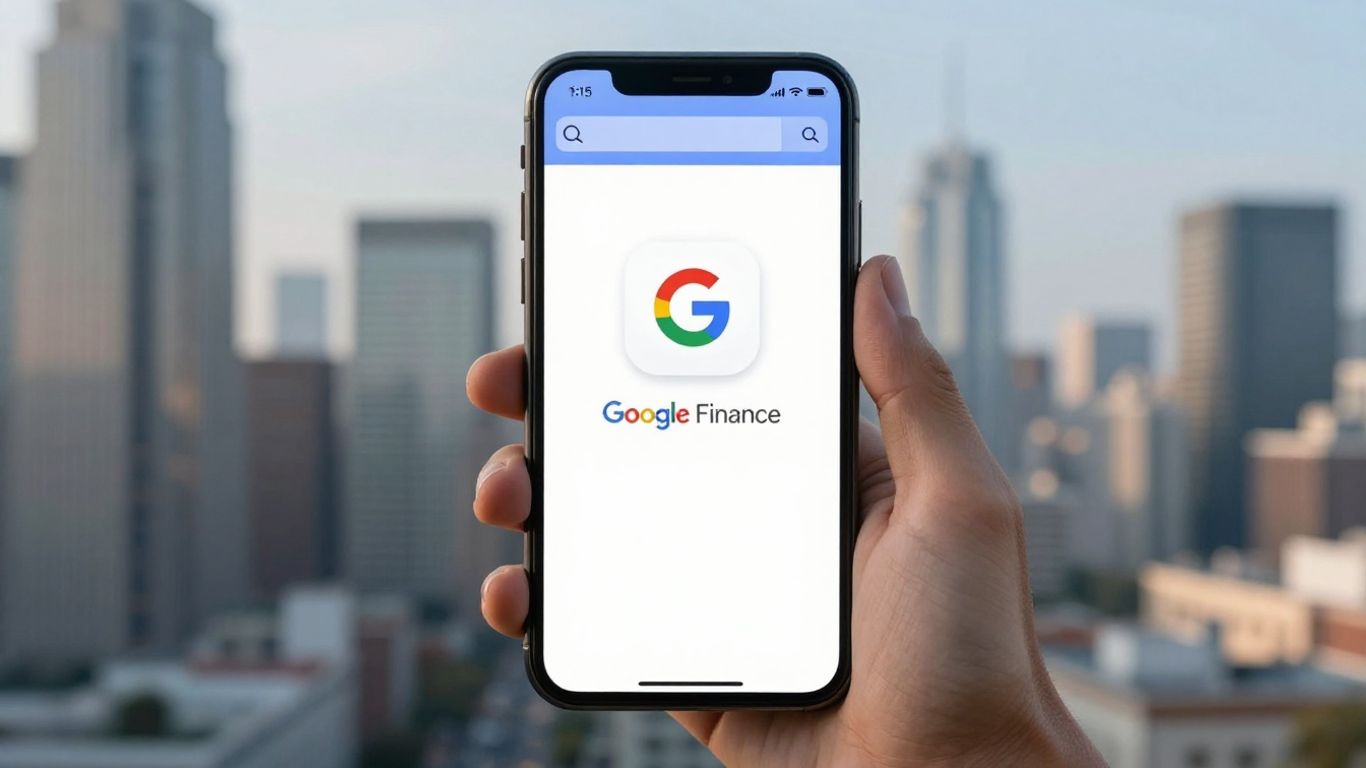
Having quick access to financial information is a big deal, especially when markets are moving. Think about it: you want to check a stock price, see how your portfolio is doing, or catch up on market news. The faster you can do that, the better.
Instant Access to Stock Market Information
Creating a shortcut, whether it’s a browser bookmark, a desktop icon, or a mobile home screen app, means you skip the usual steps of opening a browser and typing in an address. This direct link gets you to Google Finance in seconds. It’s like having a special door straight to the financial data you need. This speed is super helpful if you’re trying to make a quick decision or just want to stay in the loop without a lot of fuss.
Receiving Timely Market Updates
Markets change constantly. With a shortcut or a widget on your home screen, you can see these changes as they happen. You can set up alerts for specific stocks, so you’re notified if a price hits a certain level or if there’s important news. This means you’re not constantly refreshing pages, but you’re still getting the information you need when it matters.
Here’s a quick look at what you can monitor:
- Stock Prices: See current prices and daily changes for your chosen stocks.
- Market Trends: Get a general sense of how major indexes like the S&P 500 or NASDAQ are performing.
- Company News: Quickly access recent headlines related to specific companies.
Having real-time data at your fingertips means you can react faster to market shifts. It’s about being prepared and making informed choices without delay.
Streamlining Investment Portfolio Management
If you manage investments, keeping track of everything can get complicated. A Google Finance shortcut or widget can simplify this. You can create a watchlist of all the stocks you own or are interested in. This lets you see your entire portfolio’s performance at a glance. Instead of logging into different accounts or digging through reports, you have a central place to check in. This makes managing your money much less of a chore and more of a streamlined process. You can easily see gains and losses, helping you decide if you need to make any adjustments to your strategy.
Final Thoughts
So, there you have it. Adding a Google Finance shortcut to your phone or desktop is a pretty straightforward process, and honestly, it saves a good chunk of time. Whether you’re checking stock prices daily or just want to keep an eye on your investments, having that quick access makes a real difference. It’s a small change that can help you stay more informed about the financial world without a lot of fuss. Give it a try – you might find it becomes a regular part of your routine.
Frequently Asked Questions
What is a Google Finance App Shortcut?
Think of a Google Finance app shortcut as a quick button that takes you straight to Google Finance without having to search for it. It’s like having a direct line to all the stock market info you need, saving you time.
Why should I use a shortcut for Google Finance?
Using a shortcut is super handy because it lets you check stock prices and market news much faster. Instead of opening your browser and typing, you just tap the shortcut. This is great if you like to keep up with your investments often.
How do I put a Google Finance shortcut on my phone’s home screen?
It’s pretty simple! Open Google Finance in your phone’s web browser, look for a menu (usually three dots), and choose ‘Add to Home Screen.’ You can even give it a custom name before saving it.
Can I see stock prices without opening the app or website?
Yes, you can! By adding a Google Finance widget to your phone’s home screen, you can see live stock prices and market updates right away, without even opening the full app or website. It’s like a mini-dashboard.
Is there a special Google Finance app I can download?
Absolutely! You can download the official Google Finance app from your phone’s app store (like Google Play or the App Store). Once downloaded, you can add its icon to your home screen for even quicker access.
Can I choose which stocks appear on my shortcut or widget?
Yes, you can! Both shortcuts and widgets can often be customized. You can pick the specific stocks or market information you want to see, so you always have your most important financial data right at your fingertips.

Peyman Khosravani is a global blockchain and digital transformation expert with a passion for marketing, futuristic ideas, analytics insights, startup businesses, and effective communications. He has extensive experience in blockchain and DeFi projects and is committed to using technology to bring justice and fairness to society and promote freedom. Peyman has worked with international organizations to improve digital transformation strategies and data-gathering strategies that help identify customer touchpoints and sources of data that tell the story of what is happening. With his expertise in blockchain, digital transformation, marketing, analytics insights, startup businesses, and effective communications, Peyman is dedicated to helping businesses succeed in the digital age. He believes that technology can be used as a tool for positive change in the world.